We are currently still building up the English documentation; not all sections have been translated yet. Please note that there may still be German screenshots or links to German pages even on pages that have already been translated. This guide mostly addresses English speaking users in Germany.
Detailed description: JTL Returnless plug-in
On this page, you will find a detailed description of the functions in the JTL Returnless plug-in. You can reach this area in the back end of your JTL-Shop via Plug-ins > Installed plug-ins > JTL Returnless. It includes the tabs API key, Shortcodes, Settings and Documentation.
Tab: API key
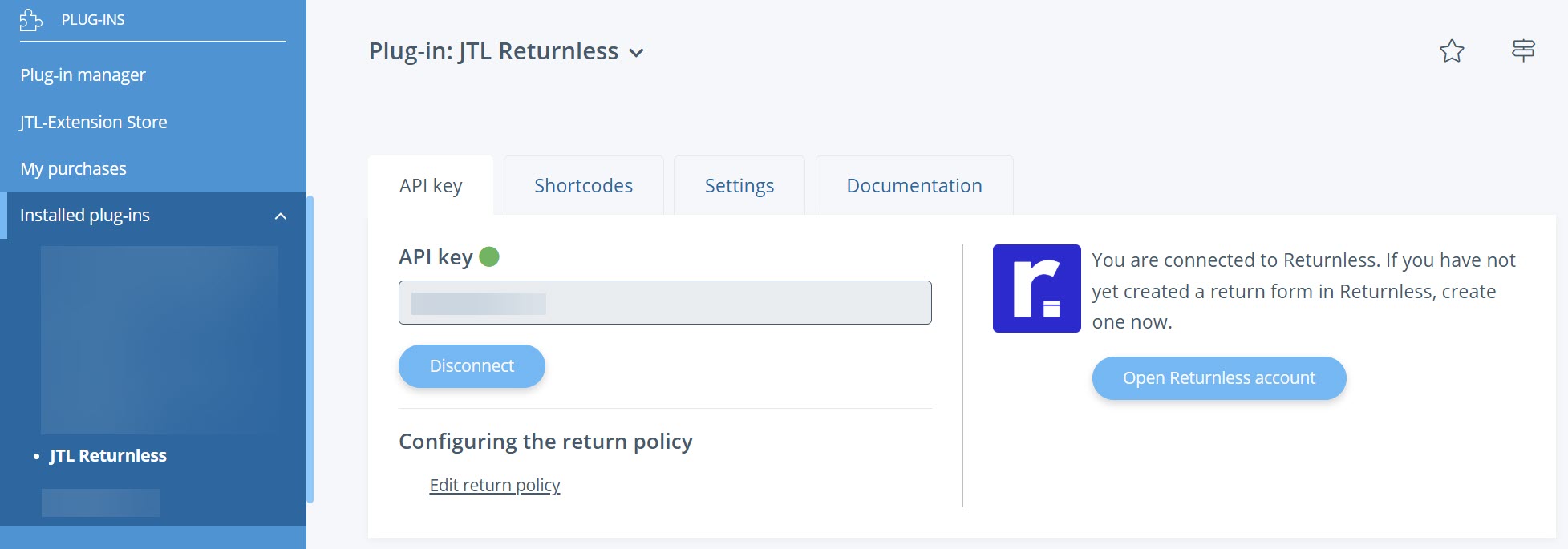
API key: Into the field, enter an API key that you created in your customer account in Returnless. For more information on this topic, click here: Creating an API key in Returnless.
Disconnect: Click on this button to disconnect Returnless from your JTL-Shop. This button is only visible if there is an active connection between Returnless and JTL-Shop.
Edit return policy: Click on the link to edit the return policy of your online shop. By default, the return policy is displayed in the footer of your online shop under Legal information.
Open Returnless account: Click on this button to be redirected to your Returnless customer account. This button is only visible if there is an active connection between Returnless and JTL-Shop.
Tab: Shortcodes
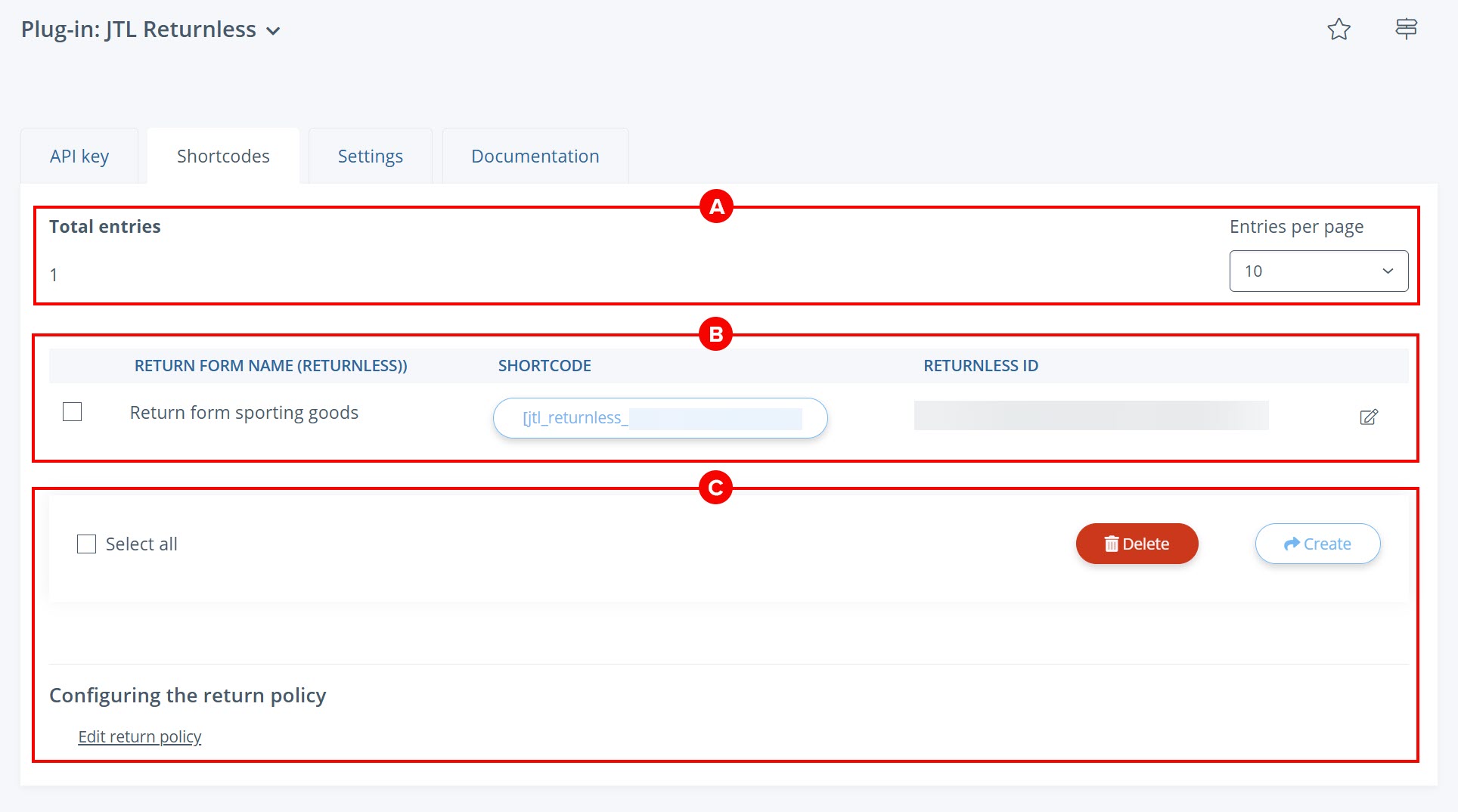
Pane A: Entries
Total entries: Total number of shortcodes that you have created in the JTL Returnless plug-in.
Entries per page: Number of shortcodes displayed in the overview.
Pane B: Shortcodes
Return form name (Returnless): In this column, you can see the name of the return form that you have assigned in Returnless.
Shortcode: In this column, you can see the shortcode that you created for the return form in the JTL Returnless plug-in. Click on the shortcode to copy it to the clipboard. For example, you can include the shortcode in your return policy to link the return form for your customers. For more information on this topic, click here: Inserting return forms in the return policy.
Returnless ID: In this column, you can see the ID of the return form that was assigned by Returnless. The content of this column is filled in automatically and cannot be edited.
Pen icon: Click on the pen icon to edit the shortcode.
Pane C: Toolbar
Select all: Activate this check box to select all entries.
Delete: Select the check box of an entry and click this button to delete the selected entry.
Create: Click on this button to create a new shortcode for a Returnless return form.
Edit return policy: Click on the link to edit the return policy of your online shop. By default, the return policy is displayed in the footer of your online shop under Legal information.
Tab: Settings
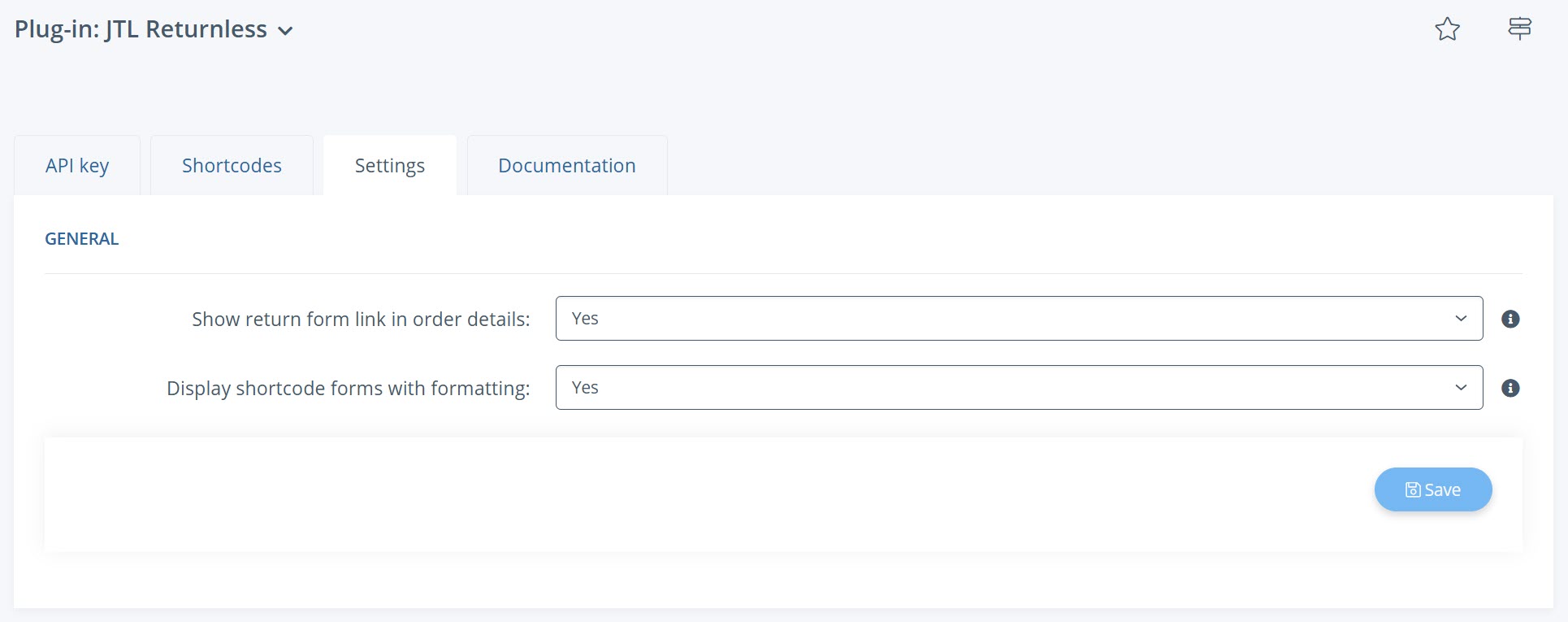
Show return form link in order details: Specify whether to display a link to the return form in the order details. This way, your customers can start the returns process more easily. Logged-in customers can view the order details in their customer account under My orders. Customers without a customer account receive a link to the order details in the order confirmation email.
Display shortcode forms with formatting: Specify whether to display Returnless return forms embedded via a shortcode with predefined formatting. If you want to customise the formatting, we recommend choosing the option No.
Save: Click on the button to save your settings.
Tab: Documentation
In this tab you will find links to the various JTL-Guide pages on the topic of the JTL Returnless plug-in. Click on a link to open the page in the JTL-Guide.