We are currently still building up the English documentation; not all sections have been translated yet. Please note that there may still be German screenshots or links to German pages even on pages that have already been translated. This guide mostly addresses English speaking users in Germany.
Dialogue box: Checking shelf life expiration date (SLED)
On this page you will find a detailed description of the all options in the Checking shelf life expiration date (SLED) dialogue box. Go here for more information on how to check items with a shelf life expiration date.
Detailed description of all options
In the Checking shelf life expiration date dialogue box, you can see all the items with a shelf life expiration date. This gives you an overview of the items that have already expired or are about to expire.
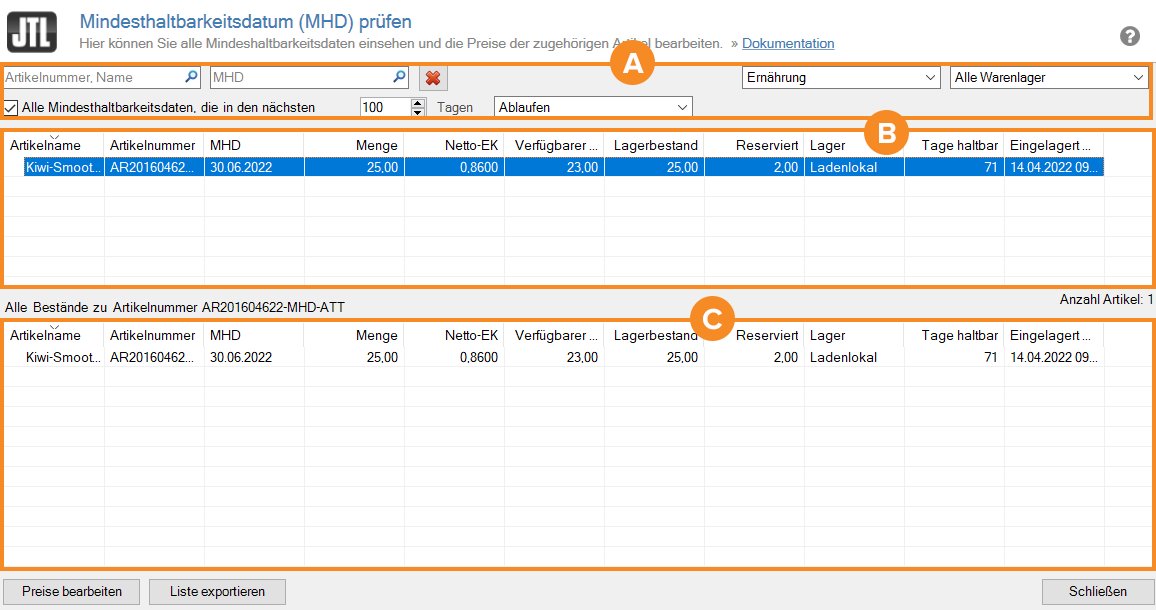
Pane A: Filters
SKU, item name: In this search field, you can search for a specific SLED item. To do this, enter either the SKU or the name of the item you are looking for.
SLED: In this search field, you can filter the items by shelf life expiration date.
All items expiring/still good in the next (x) days: Activate this check box and specify a time period in the number field. In the drop-down menu, select whether you want to display items that will expire in the specified period or are still good.
Product groups: You can use the drop-down menu to look for SLED items that belong to a specific product group.
Warehouse: You can use the drop-down menu to search for SLED items via your warehouses.
Pane B: Overview
Depending on the filter options you have set, you will see the corresponding SLED items in the overview.
Pane C: Stock overview
In the All stocks for SKU (X) area you can see further stocks of the respective items. Several shelf life expiration dates may be available for an item. Select a SLED item in the overview to get more information: the number of days until the item will expire, the item quantity or the date of storage of the respective SLED item.
Edit prices: Use this button to open the Adjusting and calculating prices dialogue box for the selected item.
Export list: Use this button to export the displayed list as a CSV file.
Related topics