We are currently still building up the English documentation; not all sections have been translated yet. Please note that there may still be German screenshots or links to German pages even on pages that have already been translated. This guide mostly addresses English speaking users in Germany.
Dialogue box: Searching for items
Description of the dialogue box
In the dialogue box Searching for items you can select items from your JTL-Wawi stock. The dialogue box appears whenever you can add multiple items to a list.
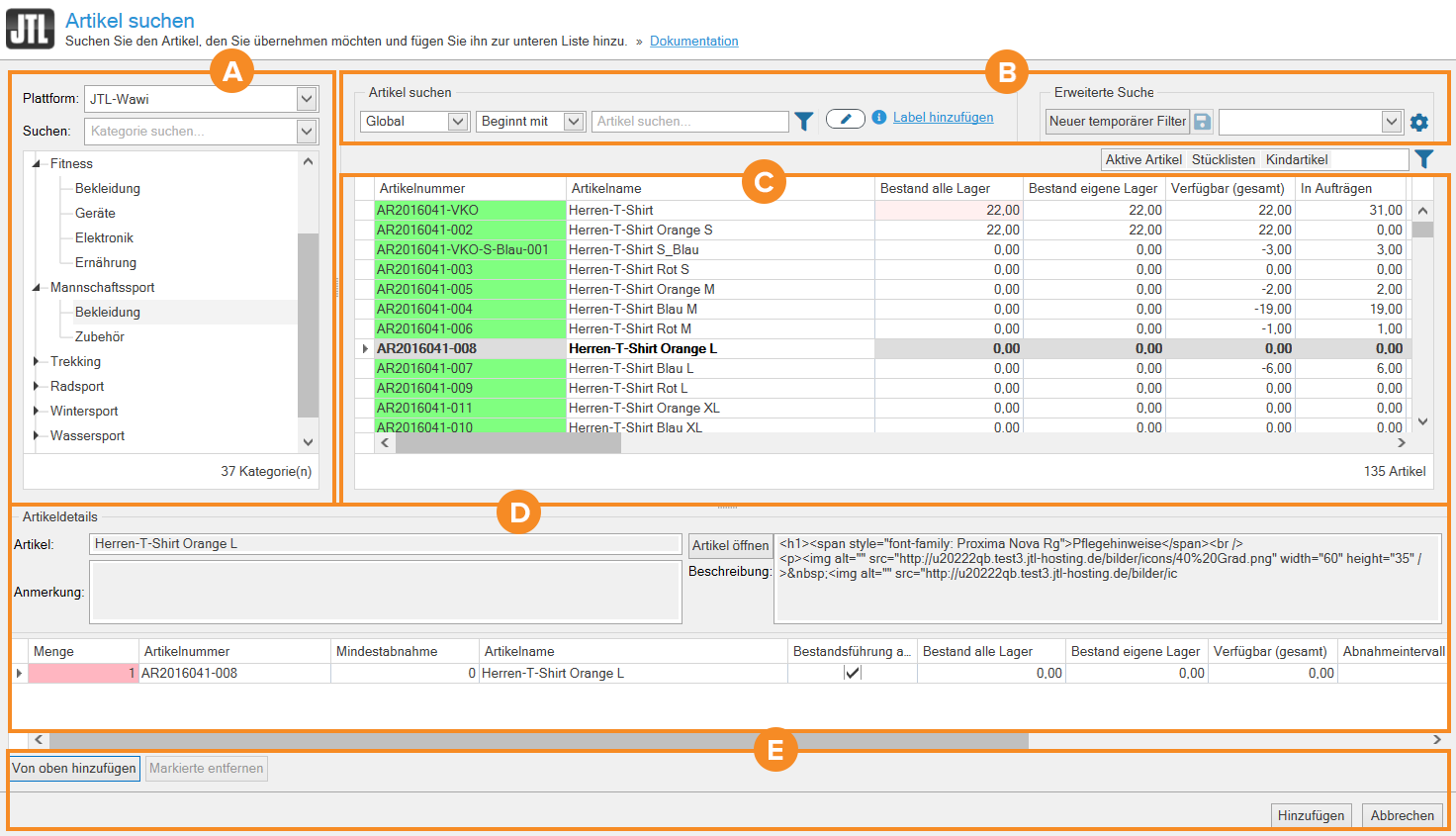
Pane A: Category structure
The category structure is the same category structure that you have created in the item management.
Platform: In this drop-down menu, select the platform on which you would like to search for the desired line items.
Search: Enter a specific category name in this search box.
Pane B: Searching & Filtering
Searching for items
First drop-down menu: In this drop-down menu, select whether you want to search for items in Global, parent category or child category.
Second drop-down menu: In this drop-down menu, you can choose from Begins with and Contains. These options refer to the adjacent text field where you can enter information related to the item.
Text field: In this search box, enter information related to the item such as EAN, MPN or UPC.
Advanced search
New temporary filter: This button opens the dialogue box Creating custom filters. In this dialogue box you can create custom filters and save them as a search template. You can then select the filter from the drop-down menu next to the New temporary filter button.
Filter icon: You can use the blue filter icon to select which type of items you would like to display. For example, you can activate Child items here to be able to see them in the overview.
Pane C: Suggestions
In this overview you will find all items that either match your search or belong to the category you have selected. Double-click on the desired item to add it to the selection. In the overview you will find a variety of item-related information. Right-click on any column header and open the Column Chooser. In the column editor, you can determine which item-related information will be displayed.
Pane D: Item master data
Items: Shows the name of the selected item.
Comment: If saved in the item master data, this field shows the comment for the selected item.
Open item: This button allows you to open the item master data of the selected item.
Description: If saved in the item master data, this field shows the description of the selected item.
Pane E: Toolbar
Add from above: Select an item from the suggestions and click on this button to add the item to the selection.
Remove selected: Removes all selected items from the selection.
Add: Closes the dialogue box Searching for items and returns to the previous dialogue box, where the selection has been applied.
Cancel: Closes the dialogue box Searching for items and returns to the previous dialogue box without applying any selection.