We are currently still building up the English documentation; not all sections have been translated yet. Please note that there may still be German screenshots or links to German pages even on pages that have already been translated. This guide mostly addresses English speaking users in Germany.
Sending payments to customers
Your task/initial situation
Requirements/Restrictions
Detailed description of initial situations
In JTL-Wawi, you can send payments back to your customers fully or partially. Depending on the processing status of the sales order, there are different ways to do this; all of which will be explained in these instructions.
Sending a payment for an existing invoice
If there is already an invoice for the sales order, you must first create an invoice correction before you can create an outgoing payment and then send the outgoing payment.
Creating invoice corrections
To create an invoice correction, do the following:
- Click on the Sales icon to go to the Sales area.
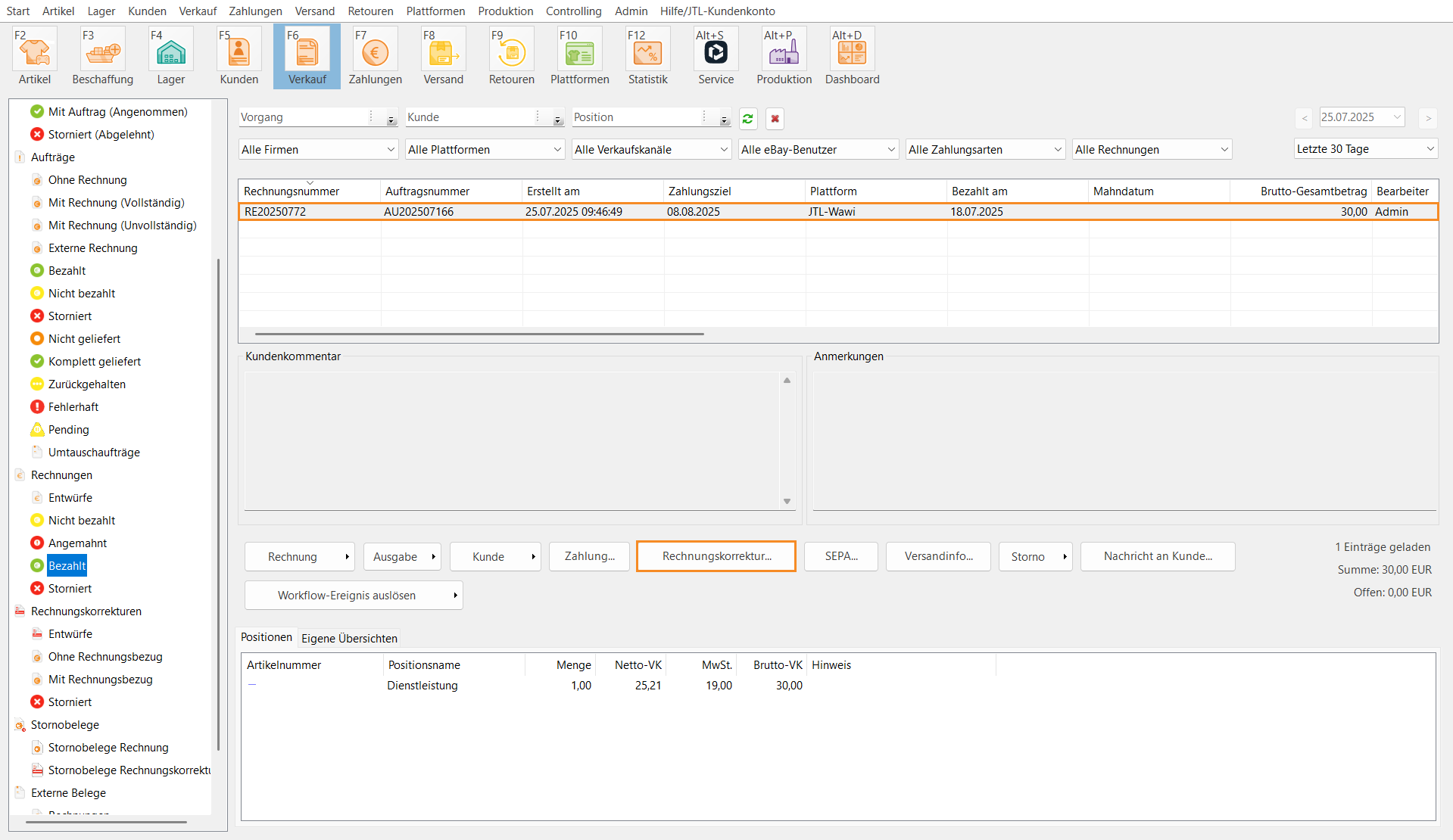
- Open the Invoices > Paid folder.
- Select the desired invoice from the table.
- Click on the Invoice correction… button.
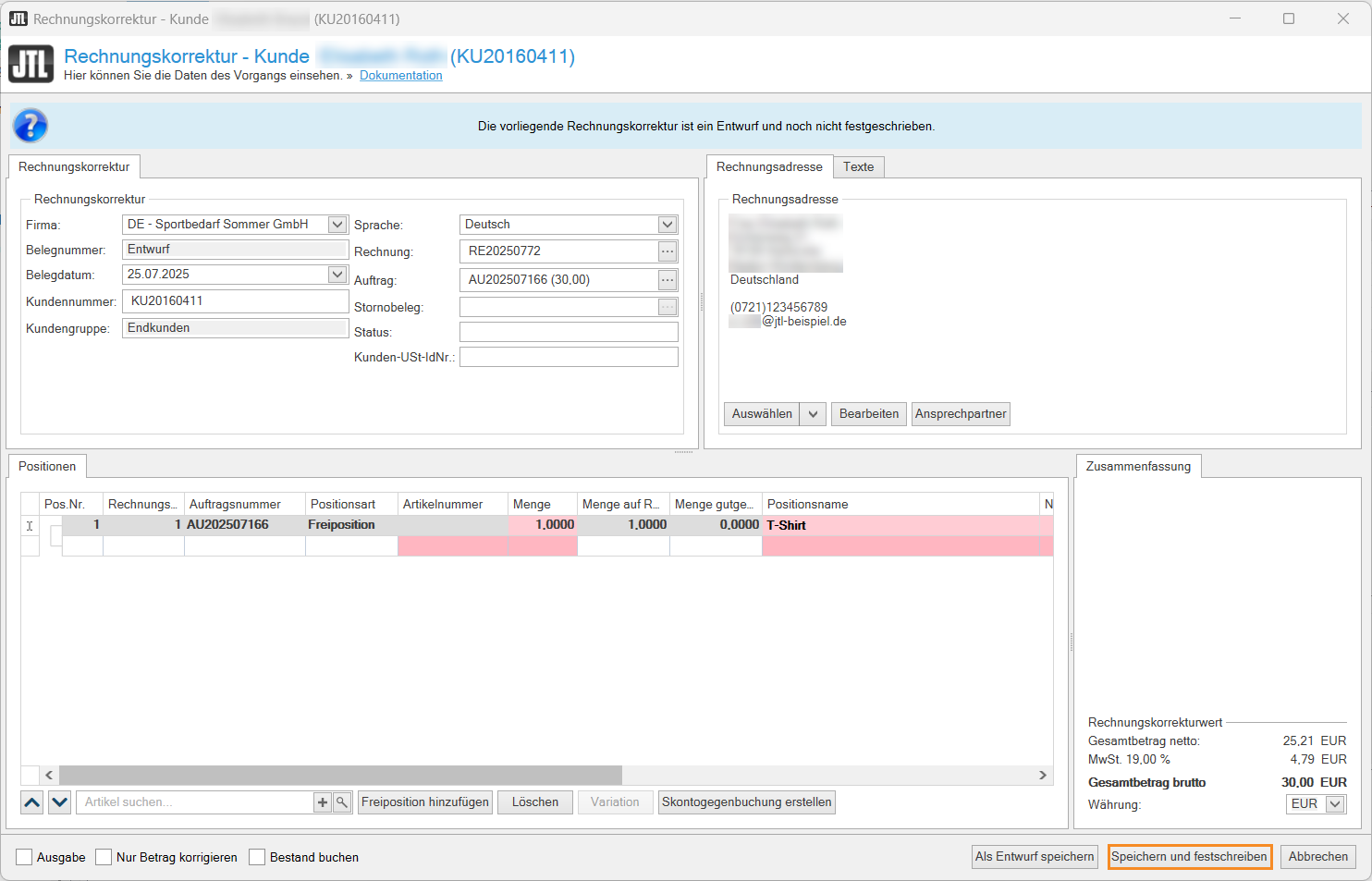
- In the new Invoice correction dialogue box in the Line items area, check the ordered items on the invoice.
- Click on the Save and formalise button.
- Note the contents of the Invoice correctionwarning message. Click on the OK button.
- Note the content of the warning message Formalising an invoice correction. Click on the OK button.
You have successfully created an invoice correction. In the next step, generate the outgoing payment.
Generating an outgoing payment
You have successfully created an invoice correction. To generate the outgoing payment for the invoice correction, do the following:
- Open the Invoice corrections folder.
- Select the invoice correction from the table.
- Click on the button Generate outgoing payment (arrow key) and select the option Payment reconciliation.
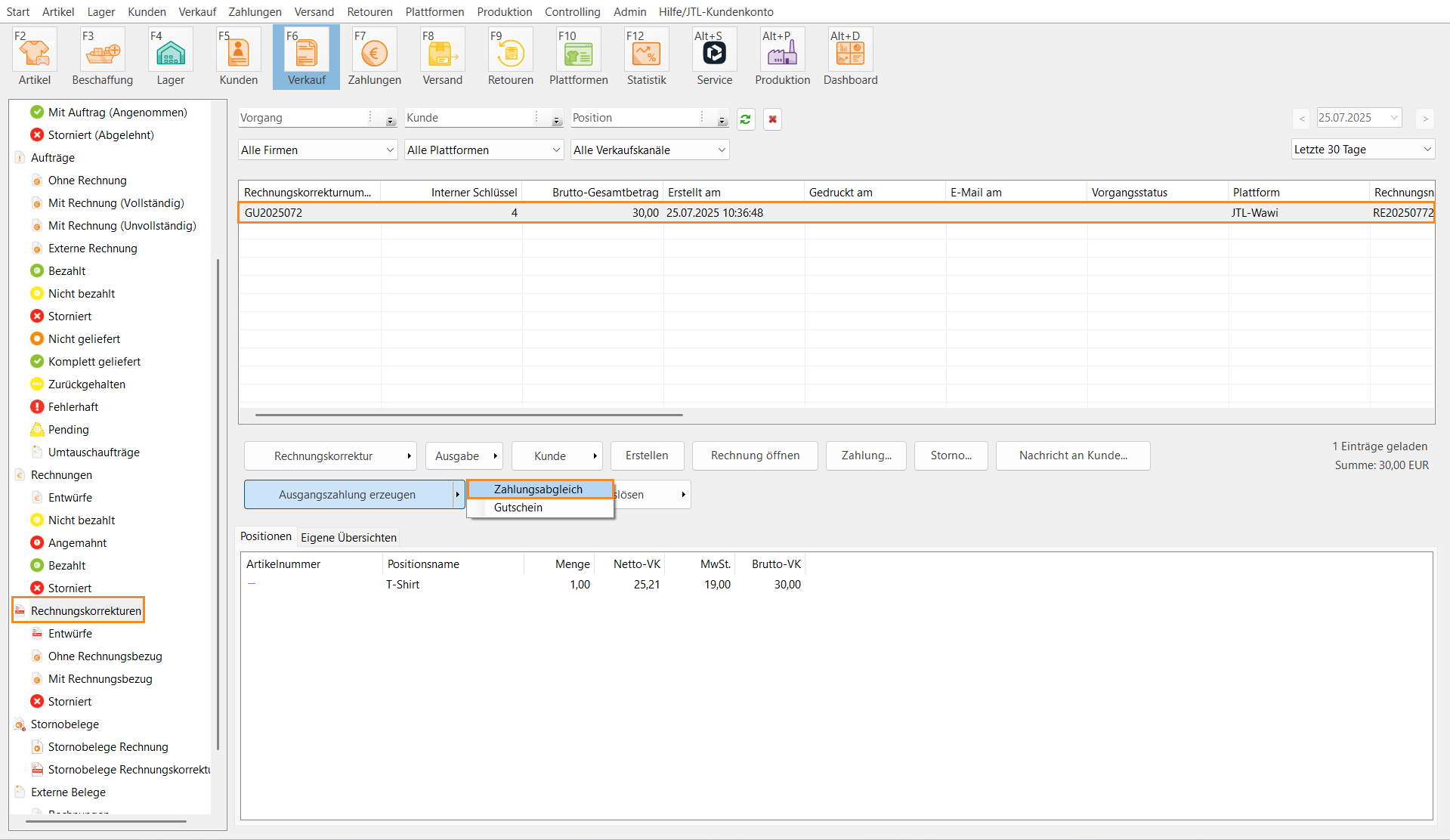
You have successfully generated the outgoing payment for an invoice correction. In the next step, send the outgoing payment to the customer.
Sending the final outgoing payment
You have successfully generated the outgoing payment. In the next step, send the outgoing payment to the customer.
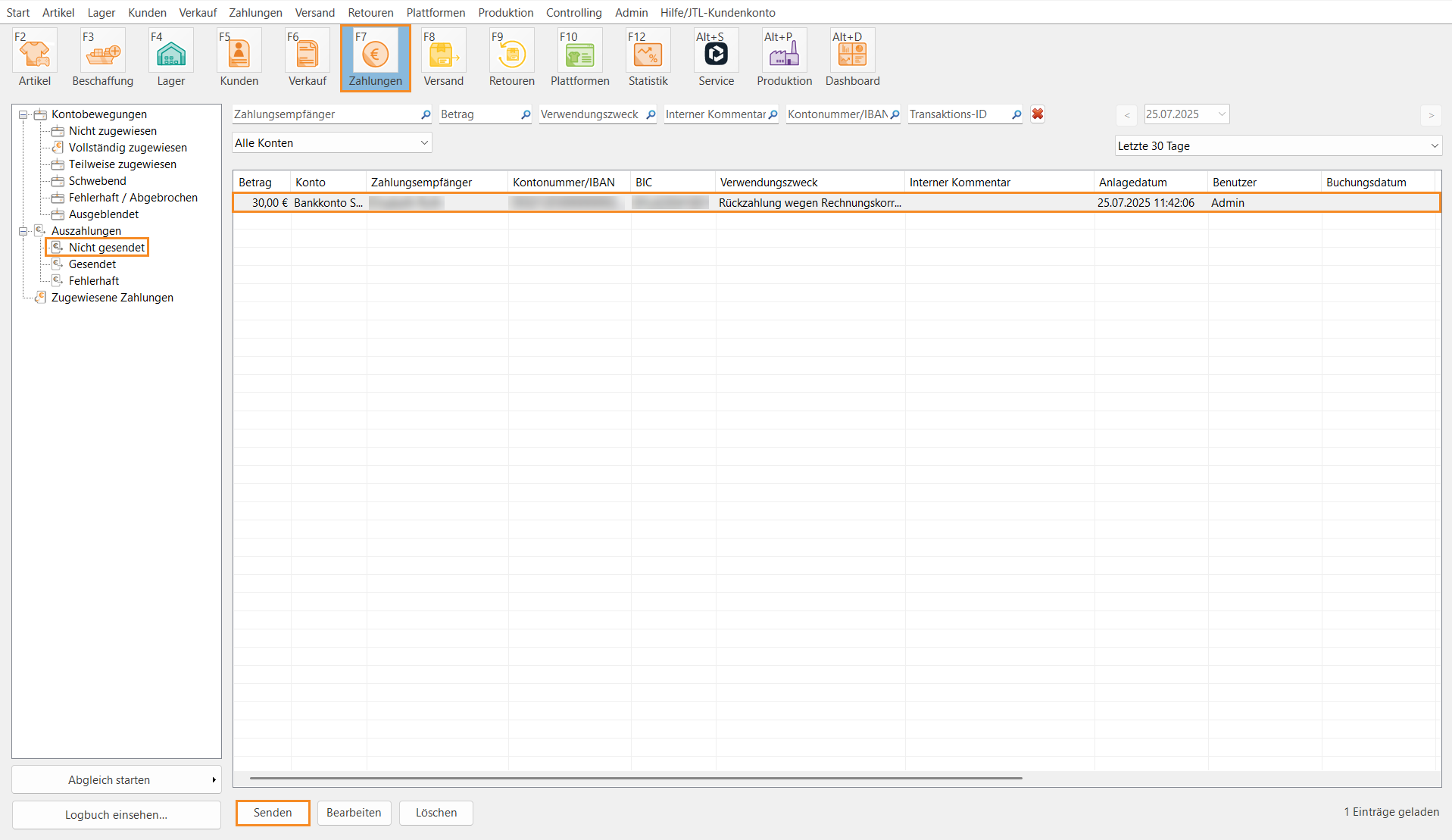
- In the Payments area, open the Refunds > Not sent folder.
- Select the payment in the table and click on the Send button.
- In the new login window, you will be prompted to enter your login details for the respective payment provider that you will use to send the outgoing payment to the customer. Enter your login details and click the OK button.
- You will see a notification message that shows you the transmission progress. Once your outgoing payment has been successfully sent, you will see the outgoing payment in the Refunds > Sent folder.
You have successfully sent an outgoing payment to your customer.
Sending payments when cancelling sales orders
You can cancel a sales order and refund the payment if you have not yet created an invoice for the sales order. The first step is to cancel the sales order and generate the outgoing payment. After that, you must send the final payment to the customer.
Cancelling sales orders and generating outgoing payments
To cancel a sales order and generate an outgoing payment, do the following:
- Click on the Sales icon to go to the Sales area.
- Open the Sales orders folder.
- Select the desired sales order from the table.
- Click on the Cancellation button (arrow key) and select the option Cancel with outgoing payment.
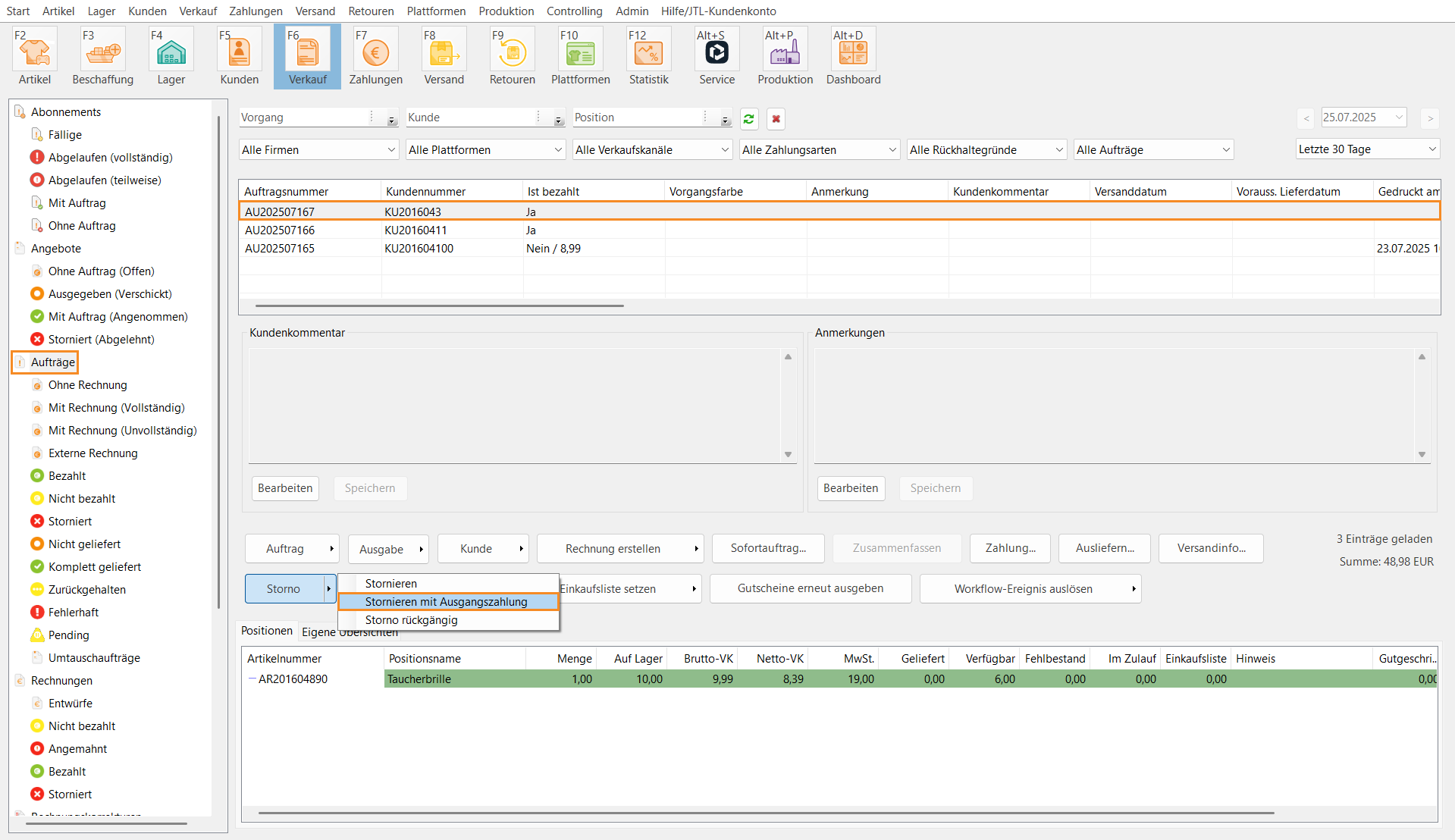
- In the new dialogue box Cancellation reason, select the Reason for cancellation from the drop-down menu and click the Apply button.
You have successfully cancelled a sales order and generated the outgoing payment. Next, you need to send the final outgoing payment to the customer. To do this, follow the instructions in the chapter Sending the final outgoing payment.
Returning payments via the payment details
In the Payment details dialogue box in the Payments area, you can also send payments back to your customers. You can return the unassigned remaining amount of a payment or return the payment of a cancelled sales order if you have not yet generated the outgoing payment during the cancellation.
Returning the remaining amount
To return the overpaid amount of a partially assigned payment to the customer, proceed as follows. The payment must be partially assigned to a sales order and/or a different chargeback.
- Open the Payments area using the Payments button.
- Open the Account activities folder.
- Double-click on the incoming payment for which you want to return the unassigned amount.
- In the new Payment details dialogue box, you will see the unassigned amount of the payment in the Amountsection. Click on the Carry out chargeback button (arrow key) and select the option Remaining amount.
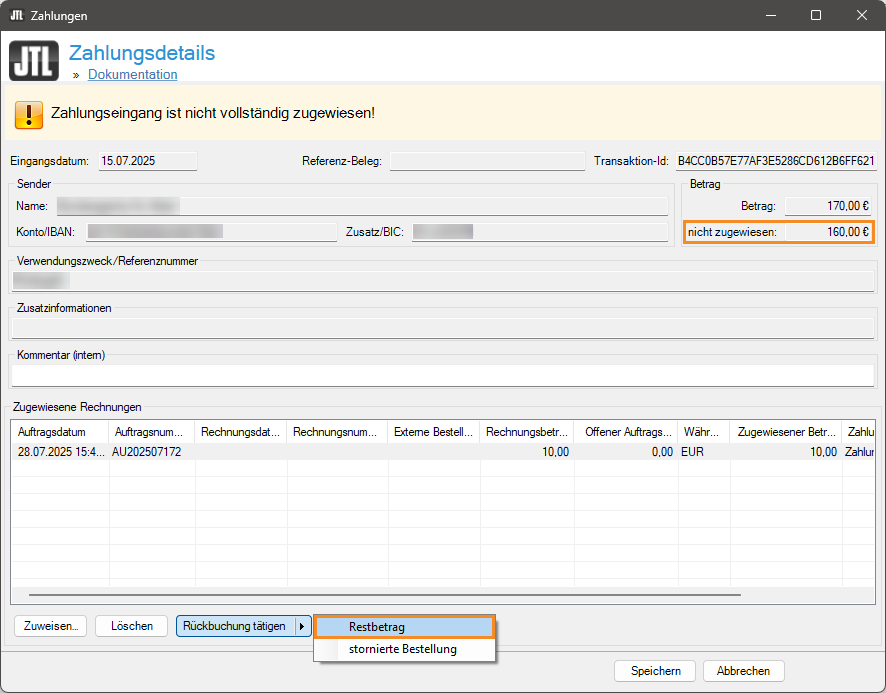
You have successfully created the outgoing payment for a remaining amount. You must then send the final outgoing payment to the customer. To do this, follow the instructions in the chapter Sending the final outgoing payment.
Returning a payment for a cancelled sales order
To return the payment for a cancelled sales order, proceed as follows. The payment must have been assigned to a sales order that you have already cancelled without creating an outgoing payment.
- Open the Payments area using the Payments button.
- Open the Account activities folder.
- Double-click on the incoming payment of the cancelled sales order.
- In the new Payment details dialogue box, click on the Carry out chargeback button (arrow button) and select the option Cancelled order.
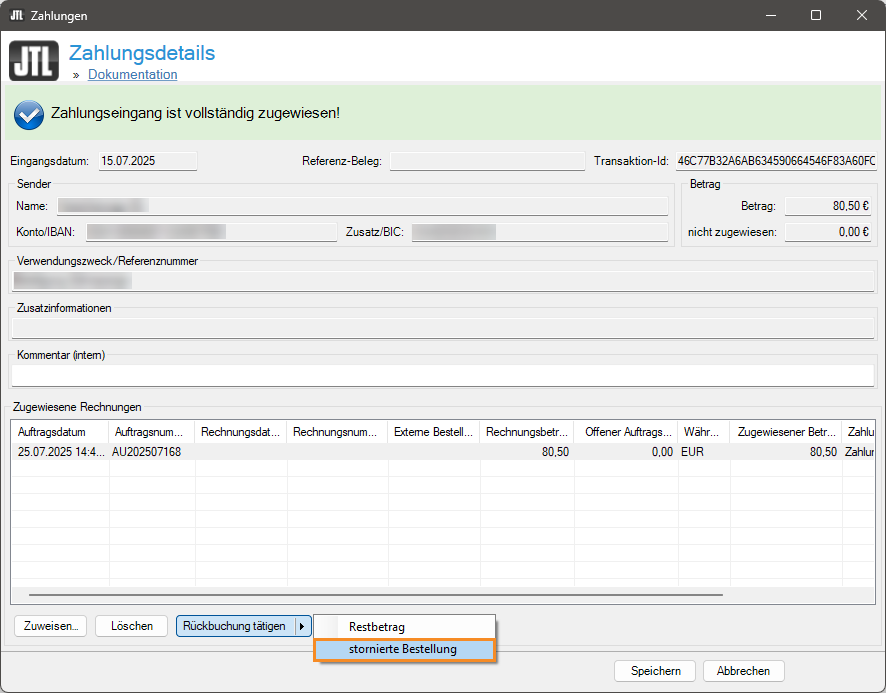
You have successfully created the outgoing payment for a cancelled sales order. You must then send the final outgoing payment to the customer. To do this, follow the instructions in the chapter Sending the final outgoing payment.