Thank you for using the English version of the JTL-Guide!
We are currently still building up the English documentation; not all sections have been translated yet. Please note that there may still be German screenshots or links to German pages even on pages that have already been translated. This guide mostly addresses English speaking users in Germany.
We are currently still building up the English documentation; not all sections have been translated yet. Please note that there may still be German screenshots or links to German pages even on pages that have already been translated. This guide mostly addresses English speaking users in Germany.
Setting up the display of characteristics in JTL-Shop
Your task/initial situation
You sell items via JTL-Shop. You would like to make it easier for your customers to find the items they are looking for using item characteristics. To do this, you want to define how item characteristics are displayed in your online shop.
Requirements/Restrictions
Setting up the display of characteristics
By default, characteristics are displayed in a separate box in the side bar of your online shop. Read more on the topic of Managing boxes.
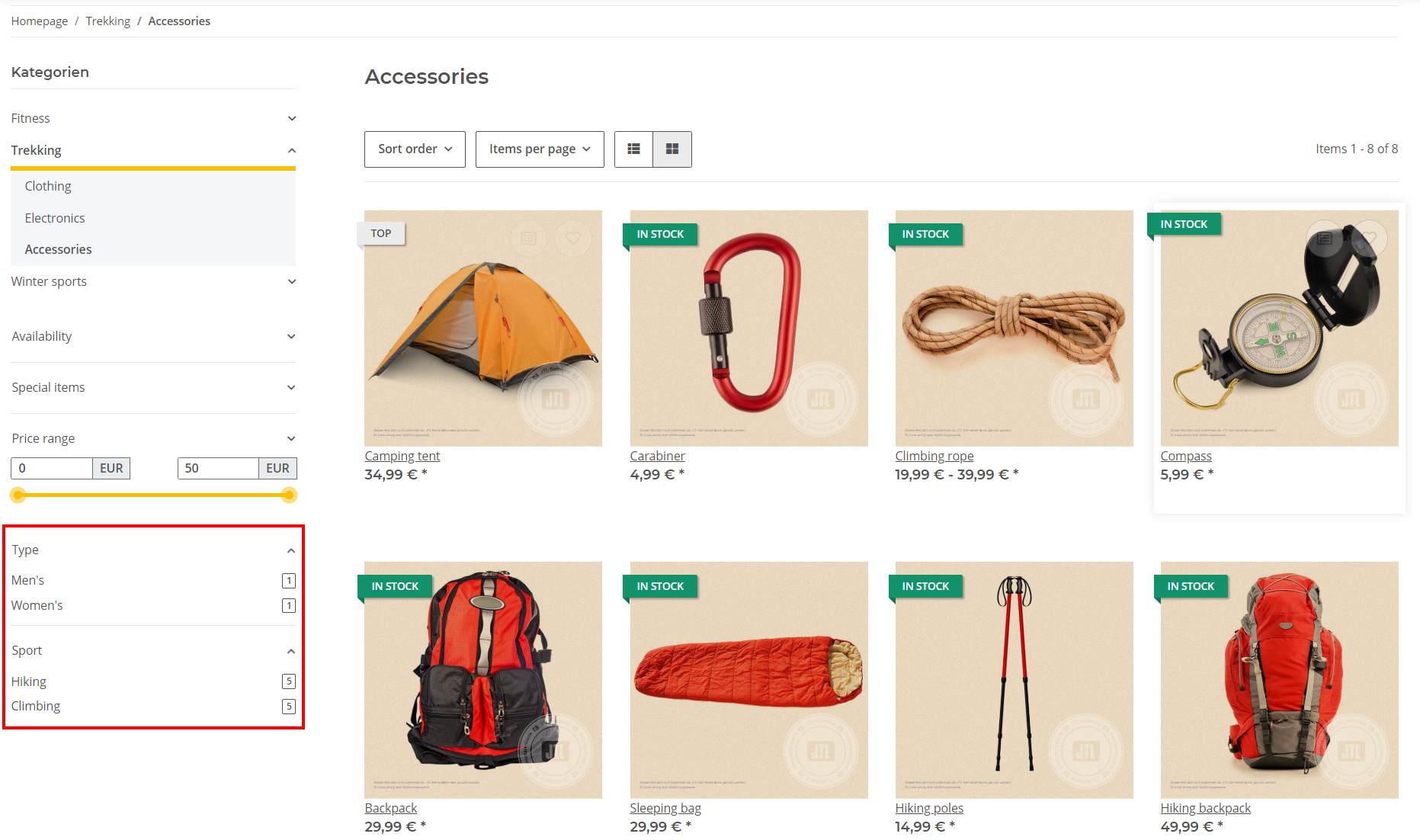
- In the back end of JTL-Shop, go to the menu View > Standard views > Item overview to open the page Item overview.
- Scroll to the Characteristics filter pane. Here you can set how item characteristics are displayed in your online shop.
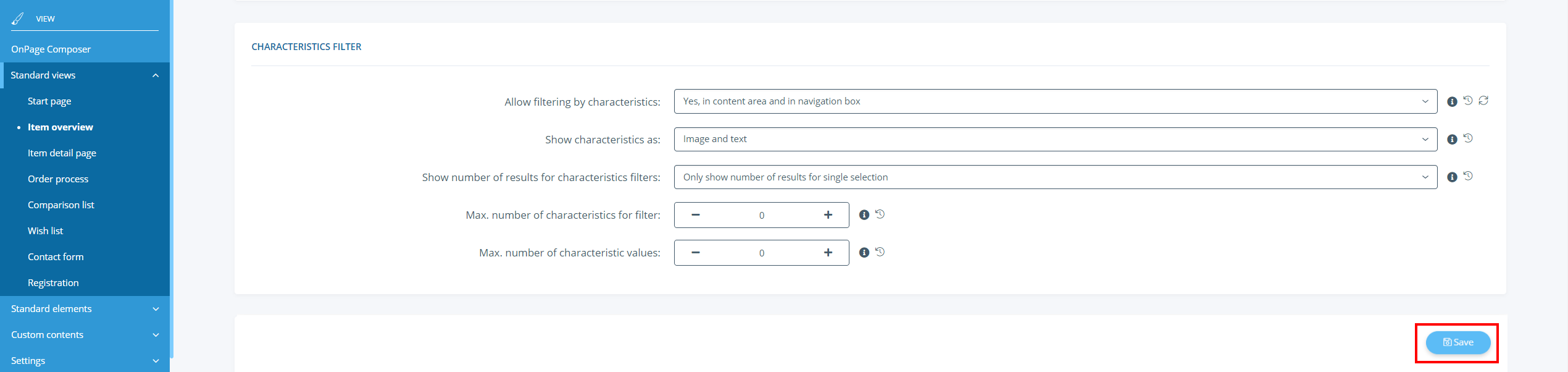
- Make the settings according to your requirements.
Detail: If you need more information about the settings, read the guide entry on Detailed description: Item overview and filters.
- Click Save to save your settings.
You have successfully defined how characteristics of items are to be displayed in your online shop.