We are currently still building up the English documentation; not all sections have been translated yet. Please note that there may still be German screenshots or links to German pages even on pages that have already been translated. This guide mostly addresses English speaking users in Germany.
Managing payments in JTL-Wawi
In the Payments area in JTL-Wawi, you can quickly track whether your sales orders have been paid and, if not, initiate measures such as dunning runs. Many of the features are only available within the Payment Module, an additional module for JTL-Wawi. Find out which JTL Edition you need to use the Payment Module under Prices and editions.
How to
Activating your licence
Connecting accounts
Setting up payment methods
Setting up dunning
Managing users and permissions
In the Payments area of JTL-Wawi, all important information about incoming payments is consolidated. Before you can collect payments from your payment providers or bank accounts, you must connect them initially. You can decide for yourself whether the passwords of the payment providers and bank accounts must be entered for each payment reconciliation or whether they should be stored in the vault in JTL-Wawi.
You can also make other settings concerning payments. For example, you can grant your customers a discount for certain payment methods. You can also customise dunning levels and dunning groups.
Reconciling accounts
Assigning and sending payments
Managing invoices
Managing open line items and dunning letters
After you have connected your payment provider and bank accounts in JTL-Wawi, you can collect payments from the payment providers and banks and assign these payments to your sales orders and invoices. In addition, you can send refunds to your customers via JTL-Wawi.
If your customers do not pay on time, you can check which payments are still outstanding. You have the option of directly sending payment reminders or dunning letters.
Overview of the Payment Module
Dunning system
7 tips for using the Payment Module
Detailed dialogue box structure and functions
Areas of the payment administration
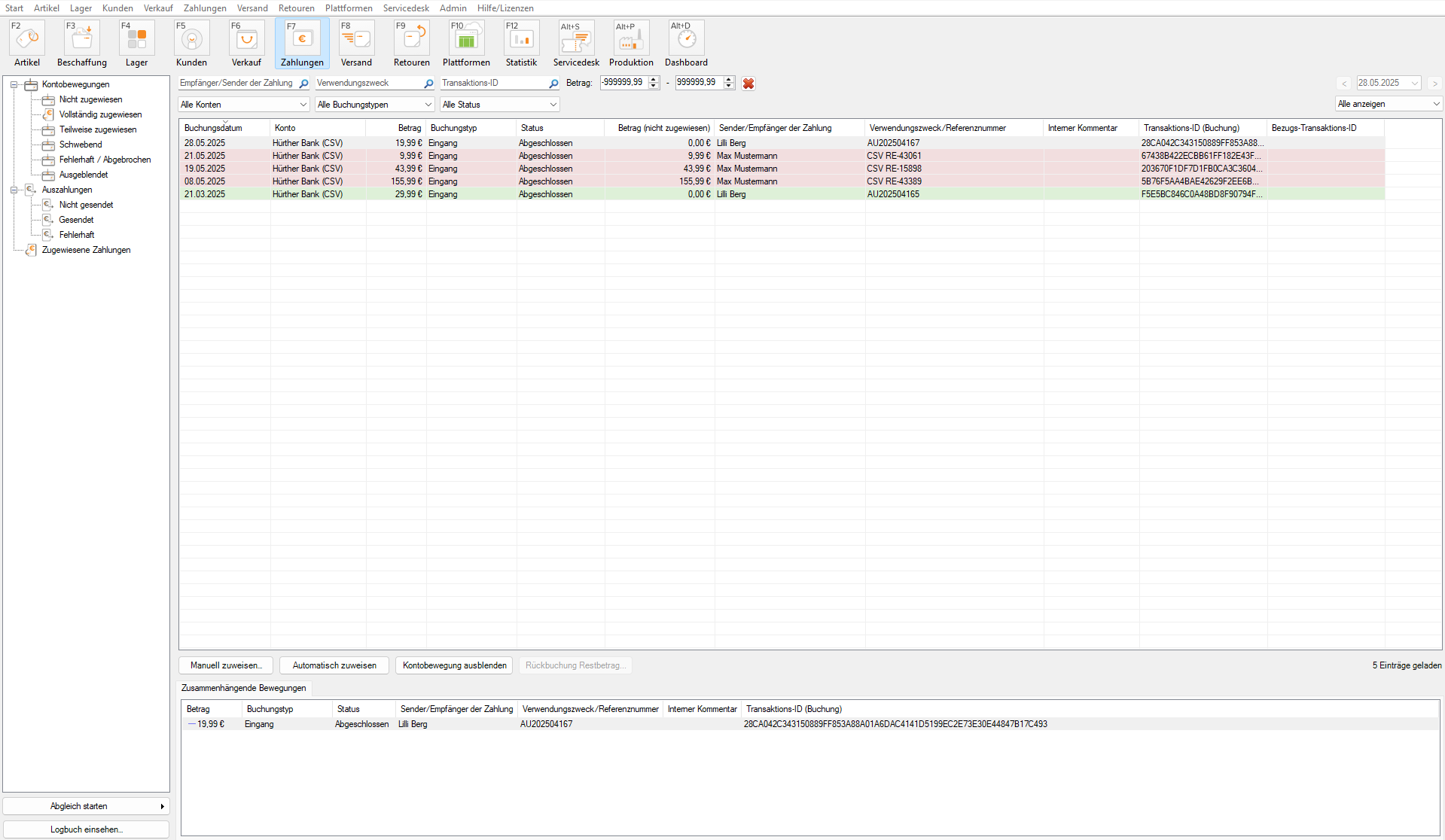
You can access the payment administration in JTL-Wawi via the Payments button in the icon bar. In the payment administration, there are three folders: Account activities, Outgoing payments and Assigned payments.
Create
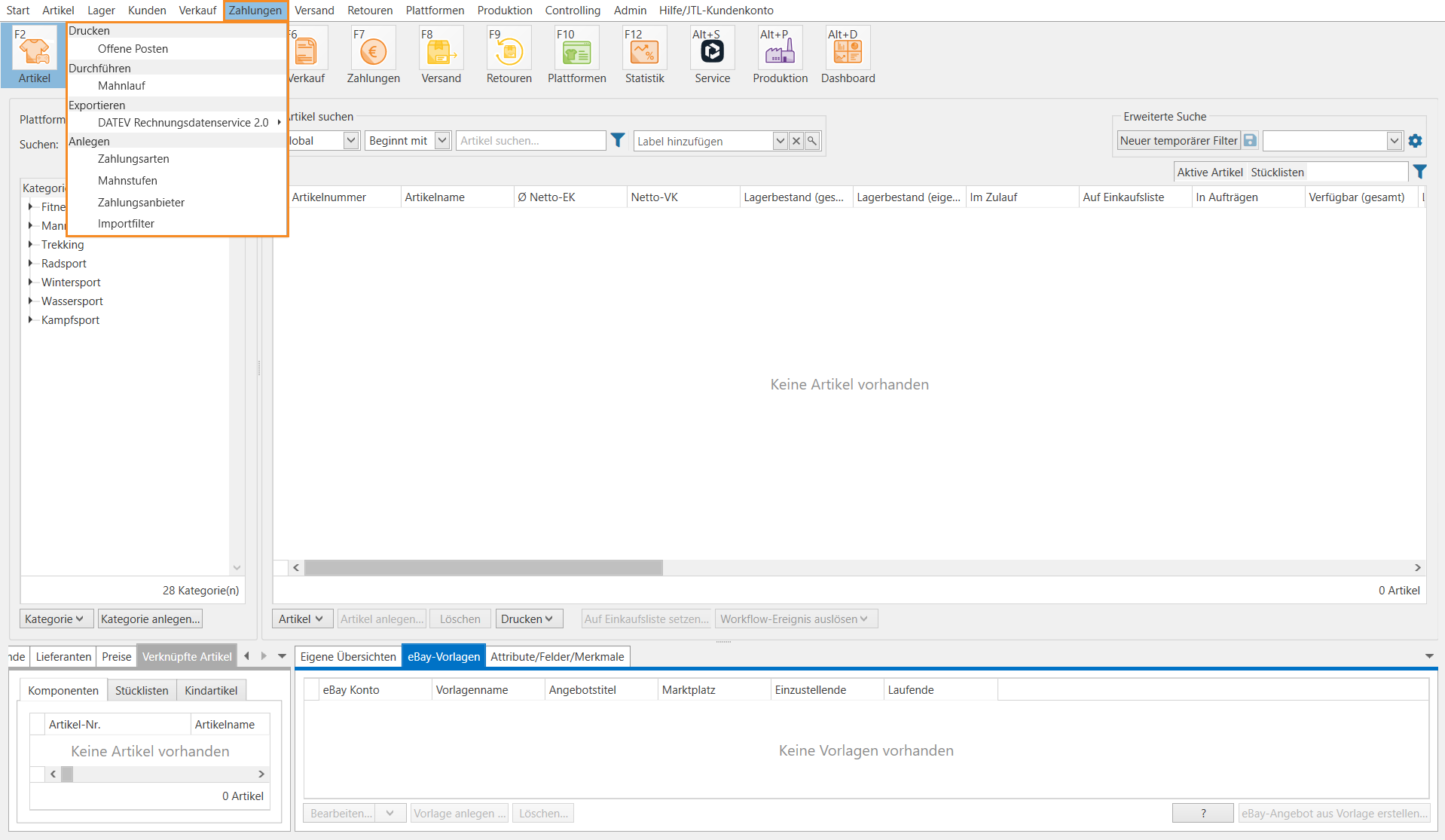
Via the Payments menu, you can access the dialogue boxes of the Payments area in JTL-Wawi.